
New Feature: How to Copy an Entire Page Layout in Your PHOTO2PRINT Photobook
There are few things more satisfying than finishing a beautifully designed photobook page. The photos are perfectly placed, the layout is just right, and everything feels cohesive. Then you realise you need to add one more page. Maybe two. And just like that, you’re staring at a blank canvas again, trying to move photos around without destroying the whole design.
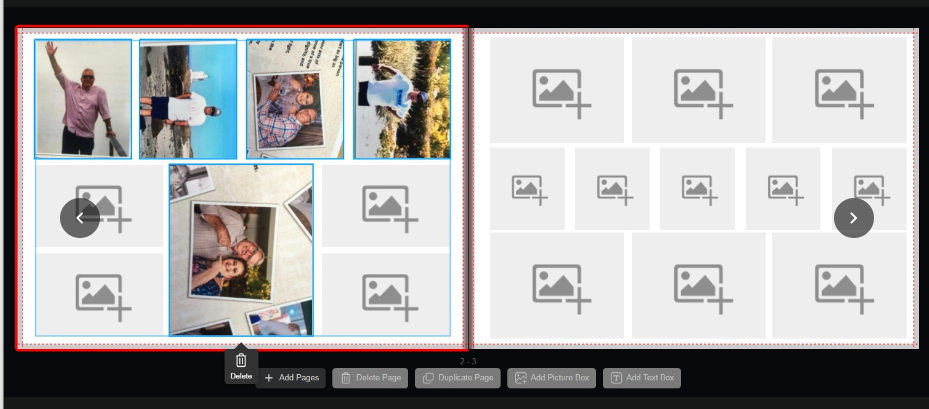
If this sounds familiar, we have great news. Our Online Design Tool has a new improvement that makes this kind of situation far less frustrating: you can now select multiple items on a page at once and copy the entire layout to a new page in just a few steps. It’s a small change that makes a big difference, especially when you’re deep into designing a large photobook.
What Is Multi-Select and Why Does It Matter?
When you’re working in the Online Design Tool, each photo, text box, and design element on your page is its own individual object. Previously, if you wanted to duplicate a layout, you’d have to move and resize each element individually on the new page which is a tedious process, particularly on a page with lots of photos or decorative details.
With the new multi-select feature, you can grab everything on a page at once and treat it as a single group. Move it, copy it, paste it, or delete it, all in one action. This means duplicating a page layout is now as quick and simple as it should be.

How to Select Multiple Items
Selecting more than one object on your page is straightforward.
Using Shift + Click (PC): Hold the Shift key on your keyboard, then click each photo, text box, or design element you want to include. Each item you click will be added to your selection, and once you’ve selected everything you need, the items will behave as one group. You can then move them around the page together, copy and paste them onto a new page, or delete them all at once.
This method is particularly useful when you only want to select some of the items on a page — for example, if you want to copy a specific cluster of photos but leave a text block behind.
Using Ctrl + A (Windows) or Cmd + A (Mac): If you want to select everything on the current page in one go, this keyboard shortcut is your best friend. Press Ctrl + A on Windows or Cmd + A on a Mac, and every single photo, text box, and design element on that page will be selected instantly — no clicking required.
This is ideal when you want to duplicate an entire page layout exactly as it is.
What You Can Do Once Items Are Selected
Once you’ve made your selection, whether it’s a few items or the entire page, you have three options:
Move: Drag the selected group anywhere on the current page. All items will move together, keeping their positions relative to each other intact.
Copy and paste: Copy your selection and paste it directly onto a different page in your project. The layout will appear on the new page, ready for you to swap out photos or edit the text as needed.
Delete: If you’ve decided a layout isn’t working, you can select everything and delete it all at once, giving yourself a clean slate without having to click each item individually.
The Most Useful Application: Duplicating a Page
The feature really shines when you need to add extra pages to a photobook you’ve already designed. Here’s exactly how to do it:
1. Add the new page(s) to your project using the page management options.
2. Go back to the page you want to duplicate.
3. Select everything using Ctrl + A (Windows) or Cmd + A (Mac) — or use Shift + Click to select specific items.
4. Copy your selection.
5. Open your new blank page and paste the copied layout into place.
6. Swap out the photos or update the text to reflect the new content.
That’s it. In six steps, your new page is already halfway designed. You’re not starting from scratch — you’re starting from a strong foundation.

A Feature Built Around How You Actually Design
Most people don’t design a photobook perfectly in sequence from page one to the last. Layouts evolve, ideas change, and extra pages get added along the way. This multi-select improvement acknowledges the way photobook design actually works in practice, and removes one of the most common friction points in the process.
Whether you’re working on a wedding album, a travel photobook, or a year-in-review book for the family, the ability to copy and duplicate layouts quickly means less time wrestling with the software and more time enjoying the creative side of putting your memories together.
Log in to your PHOTO2PRINT account and give it a try. Your next page is waiting.